Quartz 博客首页导航定制化实现与pdf、Html文档显示实践
整体效果
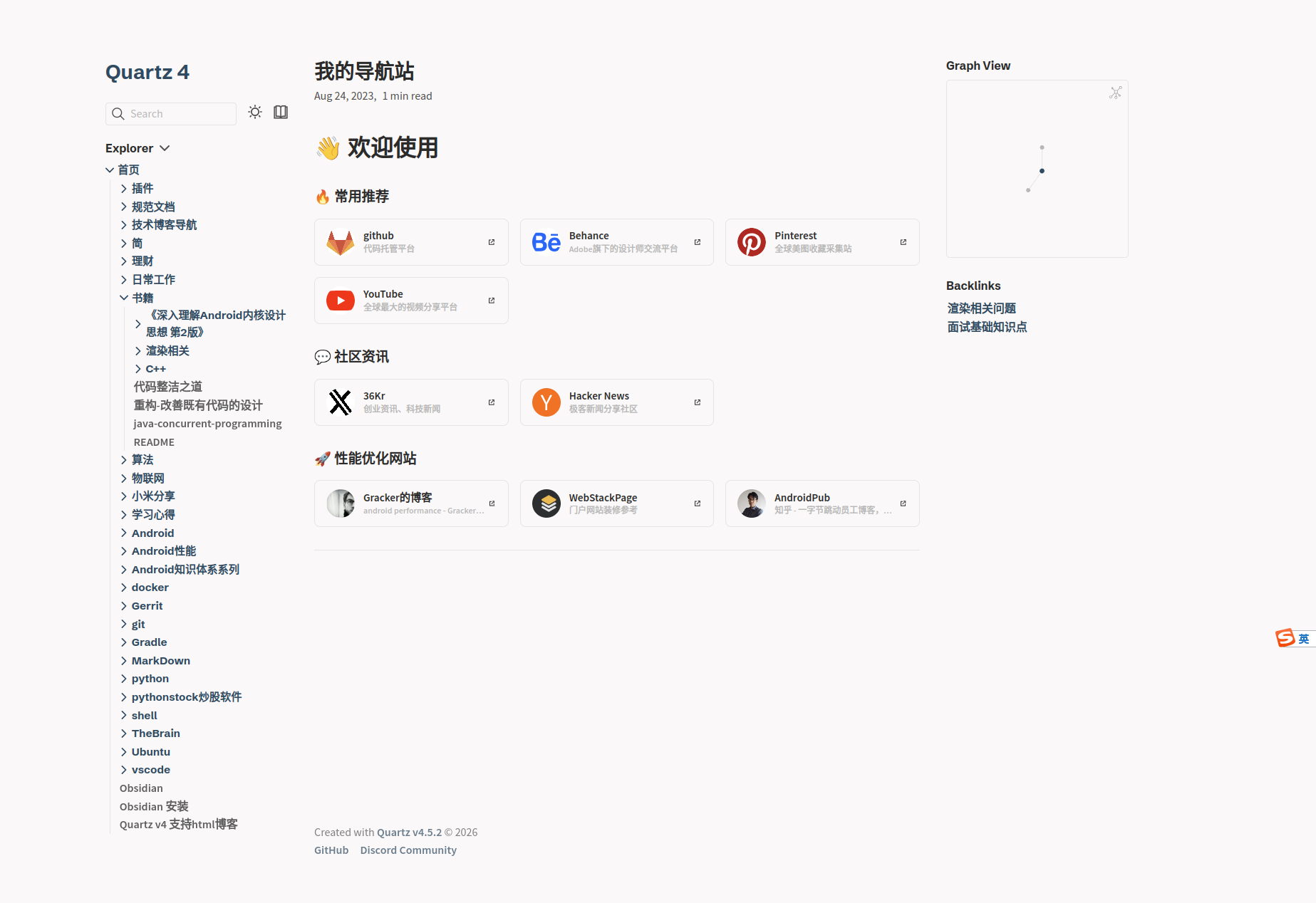
📌 目录
- 环境准备
- 步骤一:配置导航卡片样式 (CSS)
- 步骤二:编写首页导航内容 (Index)
- 步骤三:PDF/HTML 文件自动生成脚本 (Python)
- 步骤四:启动与预览
- 常见问题排查
1. 环境准备
- 确保终端所在目录为 Quartz 项目的根目录(即包含
package.json和quartz.config.ts的目录)。 - 确保已安装 Python 3 环境。
2. 步骤一:配置导航卡片样式 (CSS)
我们需要定义卡片的视觉风格(WebStack 风格)。
- 打开文件:
quartz/styles/custom.scss - 清空或保留原有内容(注意:不要在顶部添加
@use引用)。 - 将以下 CSS 代码复制并粘贴到文件末尾:
/* ==================================
   WebStack 风格导航卡片样式
   ================================== */

/* 导航分类容器 */
.nav-category {
  margin-bottom: 2rem;
}

/* 分类标题 */
.nav-category h2 {
  font-size: 1.2rem;
  margin-bottom: 1rem;
  display: flex;
  align-items: center;
  gap: 0.5rem;
  border-bottom: none !important;
}

/* 网格布局 */
.nav-grid {
  display: grid;
  grid-template-columns: repeat(auto-fill, minmax(240px, 1fr));
  gap: 1rem;
}

/* 单个卡片 */
.nav-card {
  display: flex;
  align-items: center;
  padding: 12px 16px;
  background-color: var(--light);
  border: 1px solid var(--lightgray);
  border-radius: 8px;
  text-decoration: none !important;
  transition: all 0.3s ease;
  color: var(--dark) !important;
  position: relative;
  overflow: hidden;
}

.nav-card:hover {
  transform: translateY(-4px);
  box-shadow: 0 8px 15px rgba(0, 0, 0, 0.1);
  border-color: var(--secondary);
  background-color: var(--light);
}

.nav-icon {
  flex-shrink: 0;
  width: 40px;
  height: 40px;
  border-radius: 50%;
  overflow: hidden;
  background: #fff;
  display: flex;
  align-items: center;
  justify-content: center;
  margin-right: 12px;
}

.nav-icon img {
  width: 100%;
  height: 100%;
  object-fit: cover;
  margin: 0 !important;
}

.nav-content {
  flex-grow: 1;
  overflow: hidden;
}

.nav-title {
  font-size: 0.95rem;
  font-weight: 700;
  margin-bottom: 2px;
  white-space: nowrap;
  overflow: hidden;
  text-overflow: ellipsis;
  line-height: 1.2;
}

.nav-desc {
  font-size: 0.75rem;
  color: var(--gray);
  white-space: nowrap;
  overflow: hidden;
  text-overflow: ellipsis;
  line-height: 1.2;
}
3. 步骤二:编写首页导航内容 (Index)
为了避免 Markdown 解析错误,我们将使用紧凑型 HTML 写法。
- 打开文件:
content/index.md - 清空该文件所有内容。
- 直接粘贴以下代码(⚠️ 注意: 请保持代码紧凑,不要随意格式化或添加缩进,否则会变成灰色代码块):
---
title: 首页导航
---
<style>
/* 防止 CSS 加载延迟的兜底样式 */
.nav-grid { display: grid; grid-template-columns: repeat(auto-fill, minmax(200px, 1fr)); gap: 1rem; margin-top: 1rem; }
.nav-card { display: flex; align-items: center; padding: 10px; border: 1px solid var(--lightgray); border-radius: 8px; text-decoration: none !important; color: var(--dark) !important; background: var(--light); transition: transform 0.2s; }
.nav-card:hover { transform: translateY(-2px); border-color: var(--secondary); }
.nav-icon { width: 32px; height: 32px; margin-right: 10px; border-radius: 50%; overflow: hidden; background: white; flex-shrink: 0; display: flex; align-items: center; justify-content: center;}
.nav-icon img { width: 100%; height: 100%; object-fit: cover; margin: 0 !important; display: block; }
.nav-content { overflow: hidden; }
.nav-title { font-weight: bold; font-size: 0.9rem; white-space: nowrap; overflow: hidden; text-overflow: ellipsis; }
.nav-desc { font-size: 0.75rem; color: var(--gray); white-space: nowrap; overflow: hidden; text-overflow: ellipsis; }
</style>

# 👋 欢迎使用

<div className="nav-category">
<h2>🔥 常用推荐</h2>
<div className="nav-grid">
<a href="https://dribbble.com" target="_blank" className="nav-card">
<div className="nav-icon"><img src="https://cdn.simpleicons.org/dribbble/ea4c89" alt="icon" /></div>
<div className="nav-content"><div className="nav-title">Dribbble</div><div className="nav-desc">设计灵感</div></div>
</a>
<a href="https://www.youtube.com" target="_blank" className="nav-card">
<div className="nav-icon"><img src="https://cdn.simpleicons.org/youtube/ff0000" alt="icon" /></div>
<div className="nav-content"><div className="nav-title">YouTube</div><div className="nav-desc">视频平台</div></div>
</a>
</div>
</div>

<div className="nav-category">
<h2>🚀 性能优化网站</h2>
<div className="nav-grid">
<a href="https://pagespeed.web.dev/" target="_blank" className="nav-card">
<div className="nav-icon"><img src="https://cdn.simpleicons.org/googlepagespeedinsights/4285F4" alt="icon" /></div>
<div className="nav-content"><div className="nav-title">PageSpeed</div><div className="nav-desc">Google 官方测速</div></div>
</a>
<a href="https://tinypng.com/" target="_blank" className="nav-card">
<div className="nav-icon"><img src="https://cdn.simpleicons.org/tinypng/83F912" alt="icon" /></div>
<div className="nav-content"><div className="nav-title">TinyPNG</div><div className="nav-desc">图片压缩神器</div></div>
</a>
</div>
</div>
4. 步骤三:PDF/HTML 文件自动生成脚本
该脚本会自动扫描目录下的 PDF 和 HTML 文件,并生成对应的 Markdown 页面以便在博客中展示。
- 在项目根目录下新建文件:
scan_files.py - 粘贴以下代码:
import os
import urllib.parse

# ================= 配置区域 =================
# 您的博客内容目录 (请根据实际情况修改)
TARGET_DIR = "content/myblog"

# 是否覆盖已存在的同名 .md 文件? (True=强制覆盖修复, False=跳过)
OVERWRITE = True

# 🚫 忽略列表:凡是路径中包含以下字符串的目录,都会被跳过
IGNORE_PATHS = [
    "content/myblog/简",  # 示例:不想展示的目录
    "content/myblog/私有",
    "drafts",
]
# ===========================================

def is_ignored(path):
    """检查路径是否在忽略列表中"""
    norm_path = os.path.normpath(path)
    for ignore_str in IGNORE_PATHS:
        norm_ignore = os.path.normpath(ignore_str)
        if norm_ignore in norm_path:
            return True
    return False

def create_wrapper(file_path, original_filename, ext):
    """创建 Markdown 包装文件"""
    file_name_no_ext = os.path.splitext(original_filename)[0]
    md_filename = f"{file_name_no_ext}.md"
    md_path = os.path.join(os.path.dirname(file_path), md_filename)

    if os.path.exists(md_path) and not OVERWRITE:
        return

    encoded_filename = urllib.parse.quote(original_filename)
    # Quartz 资源引用路径,通常用 ../ 即可
    src_path = f"../{encoded_filename}"

    # 给标题加转义,防止文件名含特殊字符导致报错
    safe_title = file_name_no_ext.replace('"', '\\"')

    content = f"""---
title: "{safe_title}"
tags: [generated, {ext.replace('.', '')}]
---

> [!info] 提示
>
> 如果无法直接预览,请 [点击此处下载]({src_path})。

<iframe
    src="{src_path}"
    width="100%"
    height="800px"
    style="border: none; background: white; border-radius: 8px;">
</iframe>
"""

    try:
        with open(md_path, "w", encoding="utf-8") as f:
            f.write(content)
        print(f"✅ 已生成: {md_filename}")
    except Exception as e:
        print(f"❌ 失败: {md_filename} - {str(e)}")

def main():
    if not os.path.exists(TARGET_DIR):
        print(f"❌ 错误: 找不到目录 '{TARGET_DIR}'。请检查路径配置。")
        return

    count = 0
    ignored_count = 0
    print(f"📂 开始扫描: {TARGET_DIR} ...")
    print(f"🚫 当前忽略规则: {IGNORE_PATHS}\n")

    for root, dirs, files in os.walk(TARGET_DIR):
        # 检查目录是否被忽略
        if is_ignored(root):
            print(f"🙈 忽略目录: {root}")
            # 统计被跳过的文件数
            for file in files:
                ext = os.path.splitext(file)[1].lower()
                if ext in ['.pdf', '.html', '.htm']:
                    ignored_count += 1
            continue

        # 处理文件
        for file in files:
            ext = os.path.splitext(file)[1].lower()
            if ext in ['.pdf', '.html', '.htm']:
                full_path = os.path.join(root, file)

                if is_ignored(full_path):
                    ignored_count += 1
                    continue

                create_wrapper(full_path, file, ext)
                count += 1

    print(f"\n🎉 处理完成!")
    print(f"✅ 生成/更新: {count} 个文件")
    print(f"🙈 忽略跳过: {ignored_count} 个文件")

if __name__ == "__main__":
    main()
-
运行脚本: 在终端执行:
python3 scan_files.py
5. 步骤四:启动与预览
完成上述所有步骤后,执行以下命令查看效果:
-
清理缓存(可选,推荐执行):
npx quartz clean -
启动服务:
npx quartz build --serve -
浏览器访问: 打开
http://localhost:8080,您应该能看到卡片式的首页导航,点击左侧目录可浏览自动生成的 PDF/HTML 页面。
6. 常见问题排查 (FAQ)
Q1: 首页导航显示为“灰色的代码块”?
- 原因:
content/index.md中的 HTML 代码有缩进或空行,导致 Markdown 把它当成了代码示例。 - 解决:重新复制“步骤二”中的紧凑代码,确保代码顶格写,没有任何空格缩进。
Q2: PDF 页面显示 404 Not Found?
- 原因:Python 脚本中的
src_path路径计算可能与您的 Quartz 配置不符。 - 解决:尝试修改
scan_files.py中的src_path = f"../{encoded_filename}",去掉一个点改成./,或者根据您的文件夹深度调整。
Q3: 运行 npx quartz 报错 “no such file or directory, package.json”?
- 原因:您当前终端所在的目录不对。
- 解决:使用
cd命令退回到项目根目录,直到你能看到package.json文件。