新机搭建的开发环境
Ubuntu 系统安装
新同学直接飞书联系 @米小助IT助手 安装ubuntu系统,版本推荐选择22.04(18.04版本切勿安装),做好系统后,IT工程师会配置好网络;

装机必备
- mount & umount 挂载、卸载磁盘
// 挂载磁盘
sudo mount /dev/sdb1 /home/dominic/home4
// 如需卸载磁盘
sudo umount /home/dominic/home4
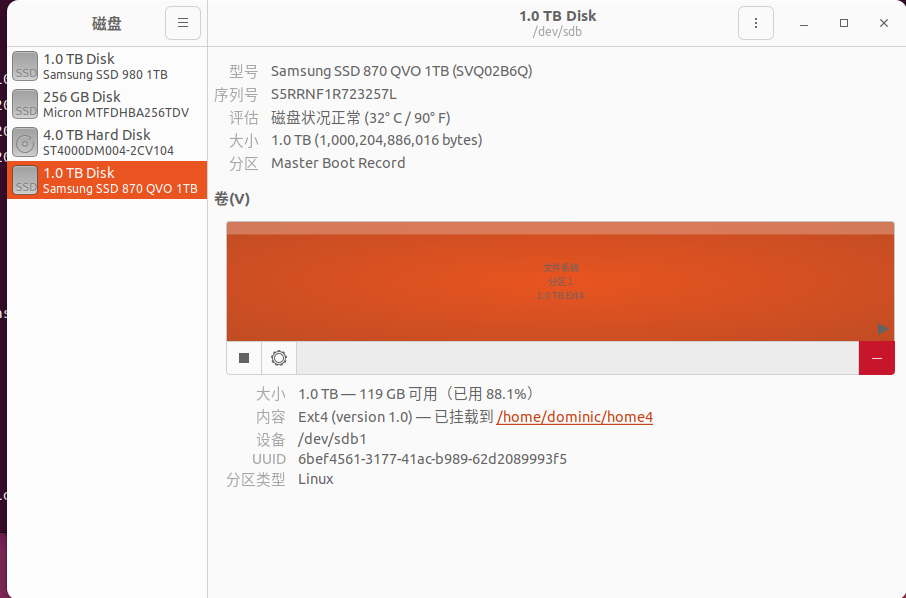
打开disk应用查看外接磁盘数量及对应位置,如下图,256G为系统盘,其余三块为外接磁盘,点击其中一个可以看到右侧详情,大小1T,设备为/dev/sdb1
-
Shell
- Oh-my-zsh 推荐安装使用
- zsh问题:zsh: command not found解决方式
-
git
sudo apt install git // git全局配置 git config --global user.name="your name" git config --global user.email="your_email@xiaomi.com" git config --global alias.br branch -
Gerrit ssh key配置参考: 新同学Quick Start —— Gerrit配置部分,添加ssh key
-
vim
sudo apt install vim- vim配置
vim ~/.vimrc  // 创建当前用户下的vimrc配置文件然后粘贴以下内容保存退出

syntax on               " Set syntax highlighting
set number              " Set the line number
set tabstop=4           " Set an indent to account for 4 spaces
set autoindent          " Set up automatic indentation
set mouse=a             " Set mouse is always available, set mouse= (empty) cancel
set cc=80               " Column 80 highlighted, set cc=0 cancellation
set cursorline          " Settings to highlight the current row
set cindent             " Format C language
set st=4                " Set the width of the soft tab to 4 spaces
set shiftwidth=4        " The width automatically indented when setting a new line is 4 spaces
set sts=4               " Set the number of spaces inserted when the Tab key is pressed in insertion mode to 4
set ruler               " Show the status of the last line
set showmode            " The status of this row is displayed in the lower left corner.
set bg=dark             " Show different background tones
set hlsearch            " Enable Search Highlight
set laststatus=2        " Always display the status bar
vim还支持安装插件提高编辑体验,感兴趣的可以参考: https://blog.csdn.net/qq_42417071/article/details/139027077
-
播放器安装Ubuntu常用播放器安装: https://blog.csdn.net/qq_54199287/article/details/134990447
sudo apt-get install vlc // vlc支持的视频格式丰富 -
中文输入法安装
-
sogou —— 推荐, 相比baidu输入法更稳定些参考官方安装说明来一遍,搜狗输入法linux-安装指导 如果不行,再补两刀如下步骤:
- 设置fcitx开机启动
sudo cp /usr/share/applications/fcitx.desktop /etc/xdg/autostart/- 卸载ibus系统输入法
sudo apt purge ibus- 添加fcitx到系统环境变量,保存退出,然后重启系统
sudo vim /et/environment
GTK_IM_MODULE=fcitx
QT_IM_MODULE=fcitx
XMODIFIERS="@im=fcitx"
-
-
Figma host配置
wget https://github.com/oldj/SwitchHosts/releases/download/v4.2.0-beta/SwitchHosts_linux_amd64_4.2.0.6105.deb sudo dpkg -i SwitchHosts_linux_amd64_4.2.0.6105.deb -
SSH配置参考: 远程办公—SSH登录
-
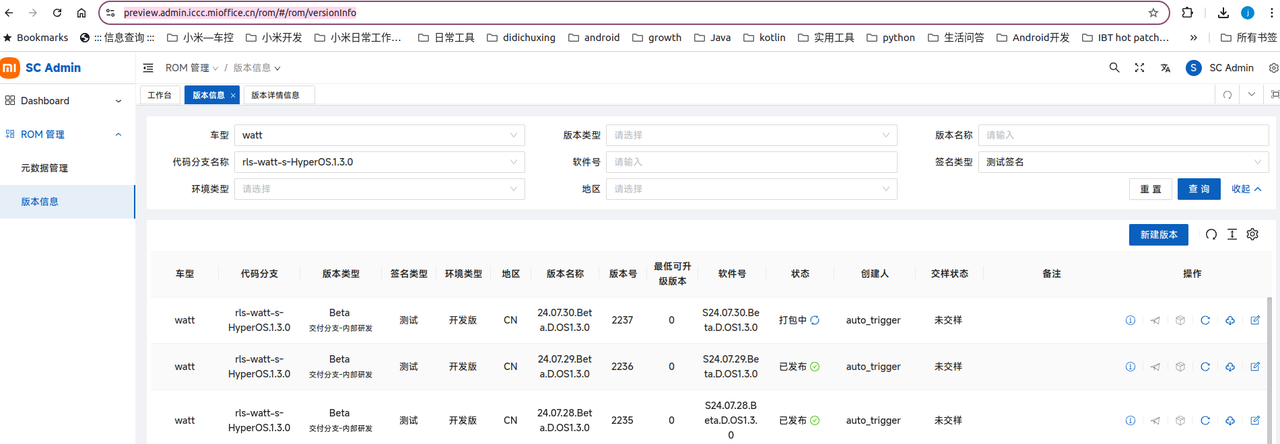
edl刷机工具座舱DCD版本下载: preview.admin.iccc.mioffice.cn下载好rom解压后,进入解压后目录即可通过edl.sh执行刷机, 需要通过金手指进入9008模式
sudo ./edl.sh -f📌 使用edl刷新,要确保rom所在路径不能包含空格,否则刷机会出现报错!
-
adb no devices
adb shell 找不到设备,lsusb 确认设备连接正常,正常连接后配置usb设备
创建android.rules文件
sudo touch /etc/udev/rules.d/51-android.rules
sudo gedit /etc/udev/rules.d/51-android.rules
在文件中加入以下配置
SUBSYSTEM=="usb", ENV{DEVTYPE}=="usb_device", MODE="0666"
保存后,把设备拔了,重新插入生效
可参考网络文章: https://www.cnblogs.com/wi100sh/p/4867354.html
adb devices no permissions
hanguoliang@hanguoliang:~$ adb devices
List of devices attached
fejbts7tzla6mjk7        no permissions (missing udev rules? user is in the plugdev group)
how to fix: https://developer.android.com/studio/run/device
Ubuntu 常用命令
wget
gzip
ln
dpkg -i
find
grep
wc